Latest News

Search This Blog

Showing posts with label Android. Show all posts

How To Play Pokemon Go On Your Computer?


Pokemon Go has earned its place as one of the most viral mobile applications of all time. It has already surpassed Tinder and Twitter in terms of downloads and daily users. According to the latest data, people are spending more time playing Pokemon Go as compared to Facebook.

This location-based augmented reality game is being played by millions of people all across America. Nintendo is working to expand its availability in other regions and bring along more people to this Pokemon-party.

To play the game, you need to walk around and catch Pokemons. For this purpose, the game uses your smartphone’s GPS. So, if you are thinking of using an Android emulator like BlueStacks to play this game on your PC, you need to do something more.


Things to Download

Bluestacks:
http://www.bluestacks.com/download.html

Kingroot: (Download for Android)
https://kingroot.net/

Lucky Patcher:
http://www.luckypatchers.com/download/

GPS Spoofer:
http://www.mediafire.com/download/5i7...

Pokémon GO: (Download latest version)
http://www.apkmirror.com/apk/niantic-...


Step by step tutorial (if only want to spoof, start at step 2):

1. Clean install Bluestacks.1b. Disable camera by going into REGEDIT on your computer and going to "HKEY_LOCAL_MACHINE\SOFTWARE\BlueStacks\Guests\Android\Config". Press camera and change the '1' to a '0', save and you're done.2. Install and run Kingroot and wait untill fully rooted.3. Restart the Android Plugin by clicking the gear wheel and press restart.4. Download GPS Spoofer, but do not install it yet.5. Install Lucky Patcher, allow it root acces and press "Rebuild & Install".6. Press "sdcard", "windows" and then find the GPS Spoofer apk file (I put it in "Documents").7. Press "Install" and let it install as a system file.8. Restart the Android Plugin by clicking the gear wheel and press restart.9. Open GPS Spoofer and uncheck everything, but check "Expert Mode".10. Choose a location in GPS Spoofer and spress the start button.11. Open Pokémon GO, log in and play! (If you want to move, select a new location in the GPS Spoofer app)


COMMON ERRORS:


"Failed to detect location." (if this doesn't work, then do the teleportation fix)
Change the GPS to High Accuracy, move your location on GPS Spoofer and restart Pokémon GO.

"Pokéstops not working/Pokémon fleeing after 1 Pokéball?"
You probably travelled to fast and got soft-banned, don't worry, it only lasts around one hour.

"My player keeps teleporting between locations."
Install an app from the Play Store called "DisableService" and allow root (obviously), search for the service "Fused Location" under System tab and disable that service. Then reboot. Doing this trick will disable your real GPS and then no teleporting will be happening. If you want your real GPS back, just enable "Fused Location" again and reboot.

"When I try to disable AR, everything freezes/crashes."
Disable camera by going into REGEDIT on your computer and going to "HKEY_LOCAL_MACHINE\SOFTWARE\BlueStacks\Guests\Android\Config". Press camera and change the '1' to a '0', save and you're done.
OR
Download this: https://play.google.com/store/apps/de...

"When I start Pokémon Go, I get a grey screen."
Either close Bluestacks entirely and relaunch Bluestacks or uninstall Bluestacks and redo the tutorial with Bluestacks for Windows 7/8.

"When I throw a Pokéball, the game crashes."
Delete your Google account from settings and restart Pokémon GO.


Note: While this game is free, playing it on PC is against the terms of Pokemon Go–so use this method at your own risk.
Are you enjoying Pokemon Go on your smartphone? Share your experiences with us in the comments section below.


How to Use Both Data & WiFi For Boost Internet Speed


Today we are going to introduce the android app that may assist you to use your Net pack and WiFi at the same time. Although at least once while using the internet you might have questioned that can we use packet data and WiFi at the same time? Generally, it is not possible because as soon as you turn on your WiFi your packet data got disconnected. So, we are going to introduce you one app that will help you to utilize the packet data and WiFi at the same time. So without wasting any more time let’s know the useful trick.

Use Both Data & WiFi For Boost Internet Speed

Requirements

  1. Rooted android device of version 2.2 or higher
  2. WiFi and Packet Data available at same time
  3. Need to Download Super Download Android App for Android [Paid VersionLink] [Free Version Link]

How To Use Super Download:

Step 1. First of all, Download and Install Super Download on your android smartphone.


Use Both Data & WiFi For Boost Internet Speed

Step 2. After installing Launch the app, you can see the home screen of the app which will display “No active files


Use Both Data & WiFi For Boost Internet Speed

Step 3. Now you need to click on settings and there you need to enable the option of “Dual Networks” which requires root access.


Use Both Data & WiFi For Boost Internet Speed

Step 4. Now you can put your desired download link on Super download by simply tapping on a (+) button which is located on the top of the app.
That’s it! now you can download web files much faster by using WiFi and mobile data at the same time.

Some Instructions

  • Using Both of the networks, packet data, and WiFi require root access in your android. And also, remember to say “authorize” to the superuser prompt.
  • As you are using WiFi along with your packet data, you may incur additional charges from your network operator for using packet data only.
  • To make the software use its full power, this software requires good  and balanced WiFi And mobile packet data without any disconnectivity.
  • If you are having good WiFi, still you need 3G or 4G network to make software to work at it’s fullest
  • Using Both connections is not supported by some devices
  • Some web server may not provide too much downloading speed as will your packet data and wifi will give simultaneously.
  • Currently, only HTTP and https protocols are supported (no FTP or torrent yet)
  • The Lite version or free one  has a file-size limit of 50 megabytes.
So this is the method that will let you use Packet Data and Wifi at the same time. So without wasting any more time install the mentioned app and use both WiFi and your packet data to increase your internet download speed. Thank you for reading the article! Hope you like the post. Leave a comment below if you are facing any trouble at any step.

10 Facebook Messenger Tips And Tricks


Facebook Messenger is one of the best ways to chat with your Facebook friends. This app also supports audio and video calls in android phone.


In this guide, we collect some best tricks and tips for you that worked with Facebook Messenger app.


1. Play Chess Game in Facebook Messenger
Type @fbchess play in Conversation chat for playing Chess Game and @fbchess help for help in Facebook Messenger. For example in this screenshot i'm playing chess with my friend Mohammad Saad


2. Send Animal Image in Facebook Messenger
Type @dailycute in conversation chat for sending random animal image in Facebook Messenger. For example in this screenshot i sent the animal image to my friend Hashir Jaral


3. Sync with Additional Apps in Facebook Messenger
Tap on three dots for integrating additional apps in your Facebook Messenger.

||||||||||||||||||||||||||||||||||||||||||||||||||||||||||||||||||||||||||||||||||||||||||||||||||||||||||||||||||||||||||||||||||||||||||||||||||||||||||||||||||||||||||||||||||


4. Log out From Facebook Messenger App
Clear data of your Facebook App in Android Mobile Settings for log out in Facebook Messenger App.

Click Here !


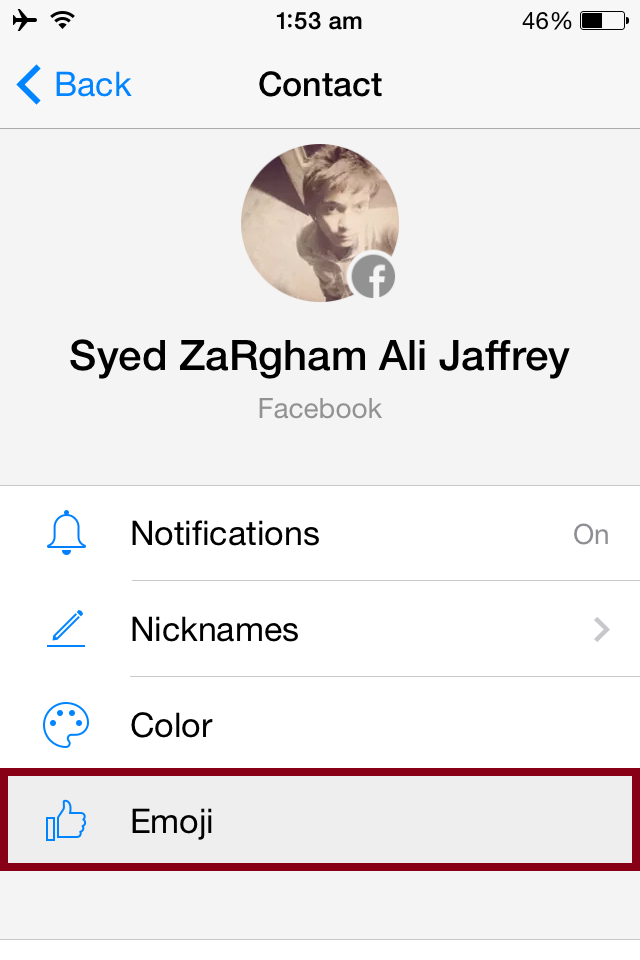
5. Change Conversation Color of a Particular Conversation Chat in Facebook Messenger
Change Chat Conversation Color in Facebook Messenger from a tap on Color option. Open any of your Friend details in Facebook Messenger and change the chat color. For example i'm changing chat color of my friend Syed Zargham 

 ||||||||||||||||||||||||||||||||||||||||||||||||||||||||||||||||||||||||||||||||||||||||||||||||||||||||||||||||||||||||||||||||||||||||||||||||||||||||||||||||||||||||||||||||||


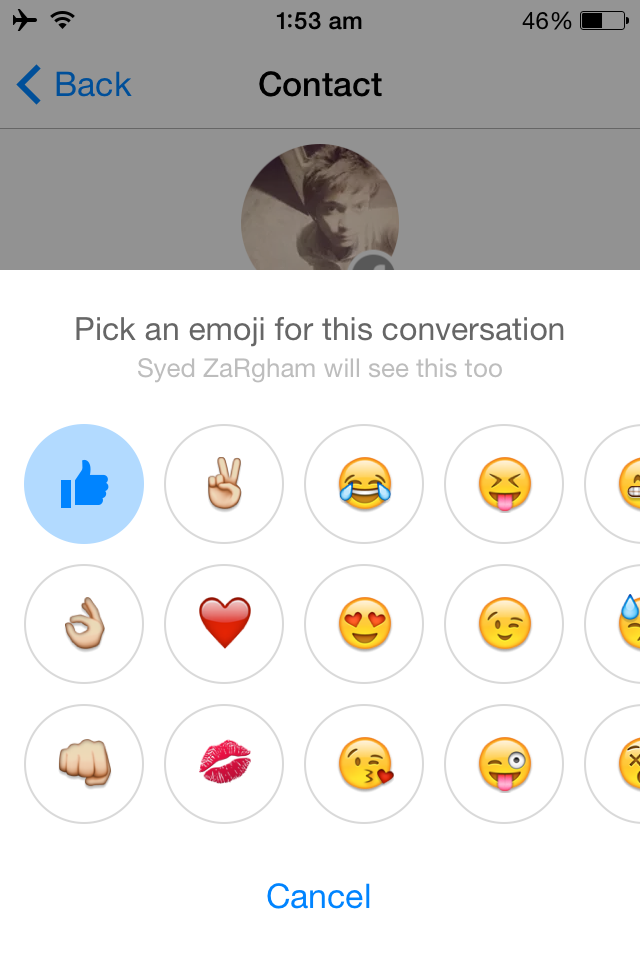
6. Change Emoji in Facebook Messenger
Tap on Emoji button fro changing your default like button emoji to other emoji.
 
||||||||||||||||||||||||||||||||||||||||||||||||||||||||||||||||||||||||||||||||||||||||||||||||||||||||||||||||||||||||||||||||||||||||||||||||||||||||||||||||||||||||||||||||||


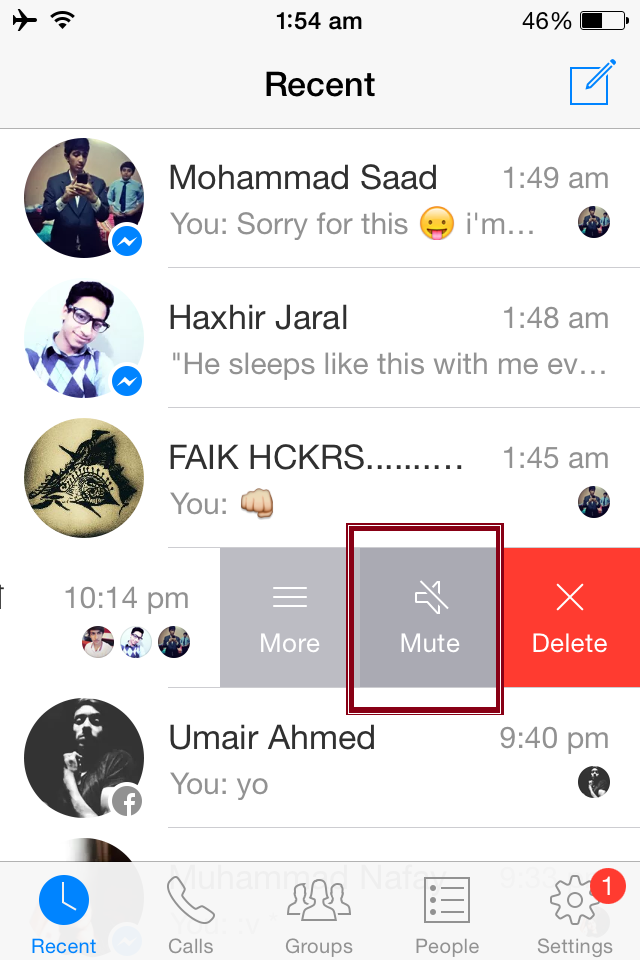
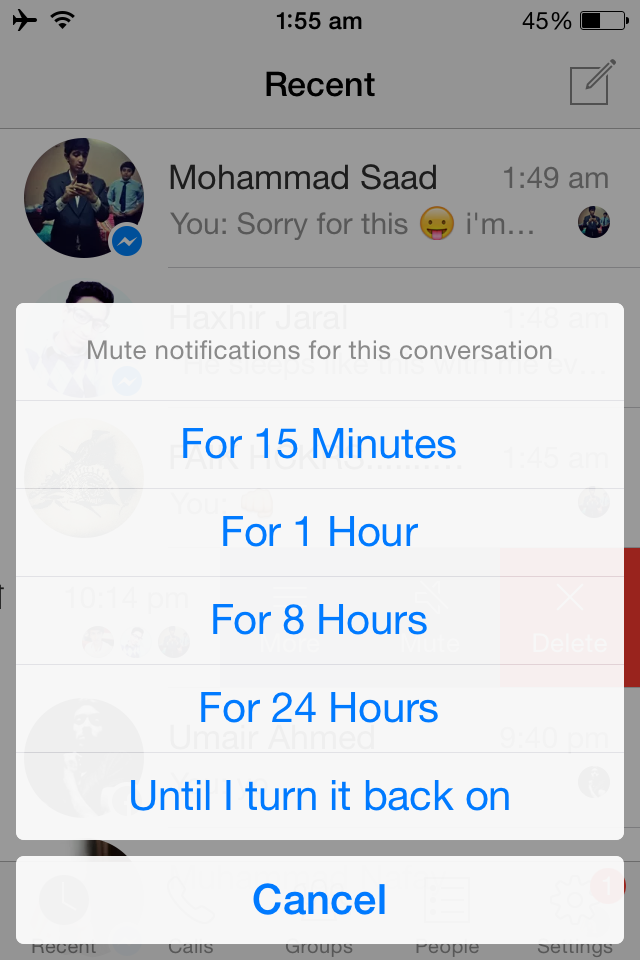
7. Mute Notification For any Conversation
Long press to any Chat in Facebook Messenger app and select mute notifications.

 ||||||||||||||||||||||||||||||||||||||||||||||||||||||||||||||||||||||||||||||||||||||||||||||||||||||||||||||||||||||||||||||||||||||||||||||||||||||||||||||||||||||||||||||||||


8. Delete Conversation in Facebook Messenger
Delete All Conversation in Facebook Messenger from this option.


9. View Hidden Messages Requests in Facebook Messenger
Tap on People in Settings for open Hidden Message Requests in Facebook Messenger.

 ||||||||||||||||||||||||||||||||||||||||||||||||||||||||||||||||||||||||||||||||||||||||||||||||||||||||||||||||||||||||||||||||||||||||||||||||||||||||||||||||||||||||||||||||||


10. Change Nickname in Facebook Messenger
Tap on Nickname button for changing your default name.

  ||||||||||||||||||||||||||||||||||||||||||||||||||||||||||||||||||||||||||||||||||||||||||||||||||||||||||||||||||||||||||||||||||||||||||||||||||||||||||||||||||||||||||||||||||


How to hack wifi password using Android Phone without Root


Hack WiFi from Android is very simple if your android mobile is the rooted phone. But what do you do when your android phone is not rooted.
How to hack wifi password using Android Phone without Root
You don’t, believe me; I receive daily 10-20 emails daily for hacking wifi password from android mobile without rooting android phone. For my readers, today I write how to hack wifi password from android mobile without rooting. This is simple and you can download free android app from Google Play Store.
Don’t worry all these tricks are also works in rooted android mobile user.

How to hack wifi password using Android Phone without 

WIFI WPS WPA Tester

 This wifi password hacking app works in android mobile without root but only in  Lollipop 5.O and Marshmallow.Make sure you update your Android phone to lollipop.

This wifi hacking app supports only WPA WPS routers. That means you can’t hack WPA2 secure router from this app.
Steps
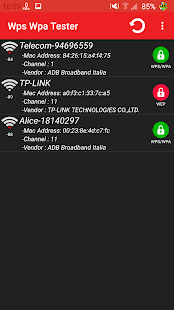
1. Launch this app and tap on the refresh button. If this app shows green icon on your wifi name, that means this app can hack wifi password. Select Green Signal WiFi and move to next steps.

WPA WPS Tester App for Hacking WiFi Password from Android Mobile
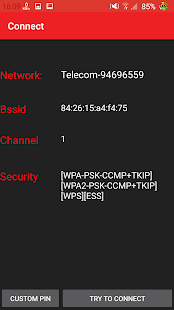
2. Tap on Connect automatic Pin and if you are lucky, this app can hack wifi password in just a few seconds.

WPA WPS Tester App for Hacking WiFi Password from Android Mobile
Price: Free
  • WIFI WPS WPA TESTER Screenshot
  • WIFI WPS WPA TESTER Screenshot

AndroDumpper ( WPS Connect )

AndroDumpper is also an another wifi hacking Android app that claims to hack wifi password in android mobile without rooting in android phone.
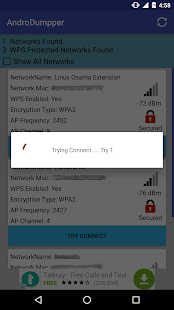
The Application will try to connect to WPS enabled Wifi Routers that have the WPS vulnerability using some algorithms to connect to the Wifi.

AndroDumpper WiFi Hacking App
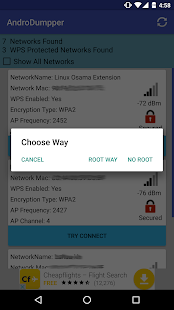
The application has two methods to connect:
– Root Method: Supported all android version but should be rooted.
– No Root Method: supports only Android 5 (Lollipop) and up.
For Android 5 (Lollipop) and up:
– If you are not rooted, you can use the application to connect, but you cannot show password unless you are rooted.
– If you are rooted will be alerted to choose either Root Method or No Root Method. , you can display the password using both methods
For Android 4.4 and earlier:
– You have to be ROOTED for both connecting and showing password
– If Your are not Rooted, then you cannot use the application
if you already know the WPS PIN you can use the app to connect and get the password using your PIN
  • AndroDumpper ( WPS Connect ) Screenshot
  • AndroDumpper ( WPS Connect ) Screenshot
  • AndroDumpper ( WPS Connect ) Screenshot
  • AndroDumpper ( WPS Connect ) Screenshot
  • AndroDumpper ( WPS Connect ) Screenshot

This App is for Testing and Educational purpose only, I’m not responsible for any bad usage


How to Recover Deleted SMS from Android (Step by Step Full Guide)


Have you accidentally deleted your important SMS or text messages in your android phone. Like you know, there is a no default settings and option in the android phone for recovering deleted text messages or SMS in the phone.
Recover Deleted Messages in Android
In this post, we show you how can you recover your deleted text messages in your android with the help of your windows PC. Here we use Wondershare Mobilego software for recovering deleted messages.
We provide you step by step guide for recovering deleted messages in your android phone. You can also recover your deleted WhatsApp chat, contacts and lots more from this software.
And the best part is you can also recover your deleted text messages of your iPhone from this Software.

How to Recover Deleted Text Messages on Your Android Phone

First make sure USB Debugging is enabled in your Phone. If USB Debugging is not enabled in your phone, you can enable it from Developer Options in your android mobile.
Enable USB Debugging in your Android Phone
  • Open Settings >>About phone and tap Build number 7 times Developer options has been enabled in your phone.
  • Now open Developer Options in your Phone and Enable USB Debugging in Your Phone.
Enable USB Debugging in Your Phone
1. Download and install the Wondershare Mobilego Software from its Official Website Download Mobilego Wondershare.
2. Now Connect your Android Phone to the Computer from USB cable. When you connect your phone with computer, this Software installs Mobilego android app in your Computer.
Tap on install button and install this app in your mobile phone.
Install Mobilego App in your Phone

3. Now your Android Phone is successfully connected with your Window PC. Click on Data Recovery button in Wondershare MobileGO Software.
Mobilego Recover Text Messages
4. Now you Successfully started Data Recovery software in Mobilego. Click on Next button and Follow the below steps.
Recover Text Messages from Mobilego Software
5. Select Messaging in recovery option and click on Next Button.
Recover Text Messages from Mobilego Software
6. Data Recovery Software analyzes your phone for recovery, wait for at least one minute.
Recover Text Messages from Mobilego Software
7. Now open Messages in this Mobilego Software. Select your messages that you want to recover , right-click on it and choose Recover
Recover Data from Android Phone
You can also Recover Deleted Text Messages in your Phone without PC from this Android App
Developer: EASIS
Price: Free
  • SMS Recovery DEMO Screenshot
  • SMS Recovery DEMO Screenshot